
Regions
To use the Cohesity Cloud Protection Service, you must select at least one cloud region for your data backups and configure your preferred encryption settings to secure them. You can choose the cloud regions either during the onboarding process or at any time after completing onboarding.
Add Regions
To add cloud regions:
-
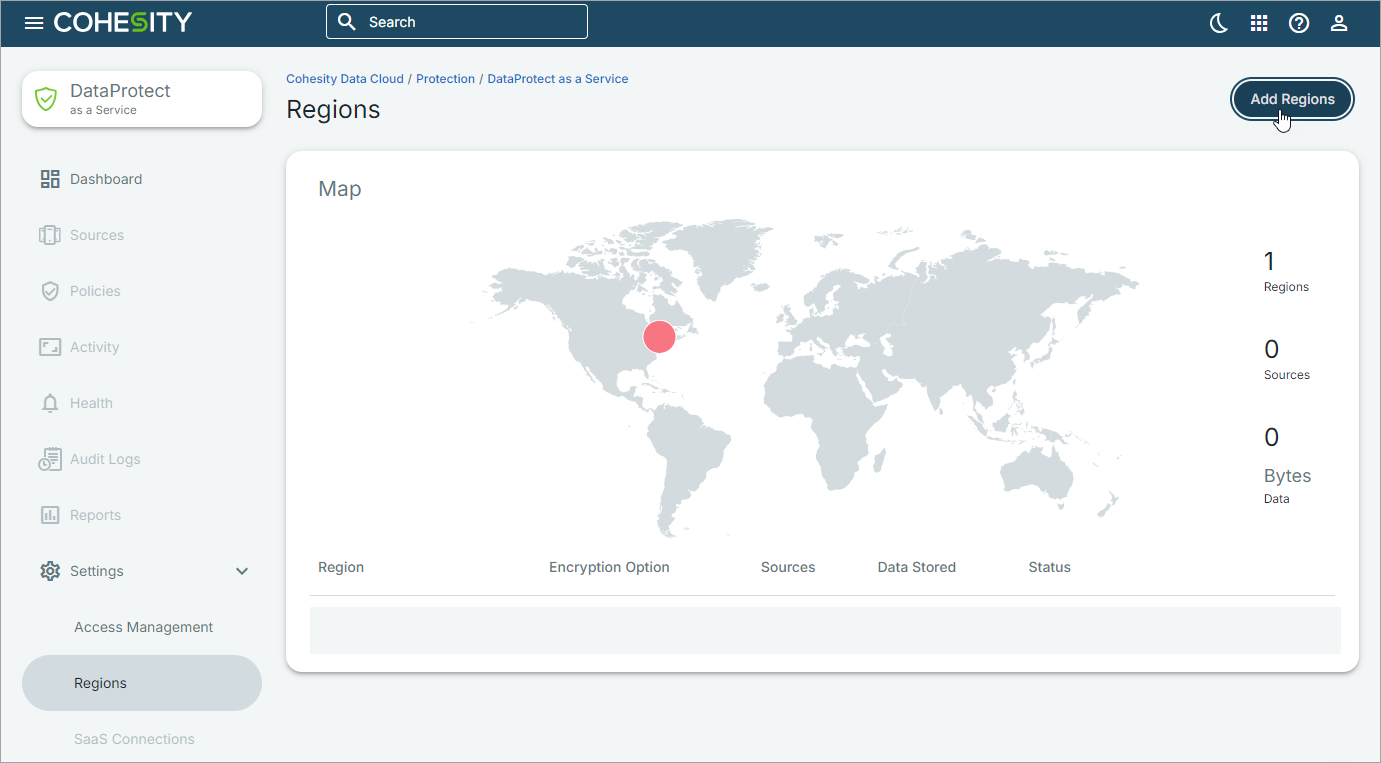
In Cloud Protection Service, navigate to Policies > Regions, and click Add Regions.
-
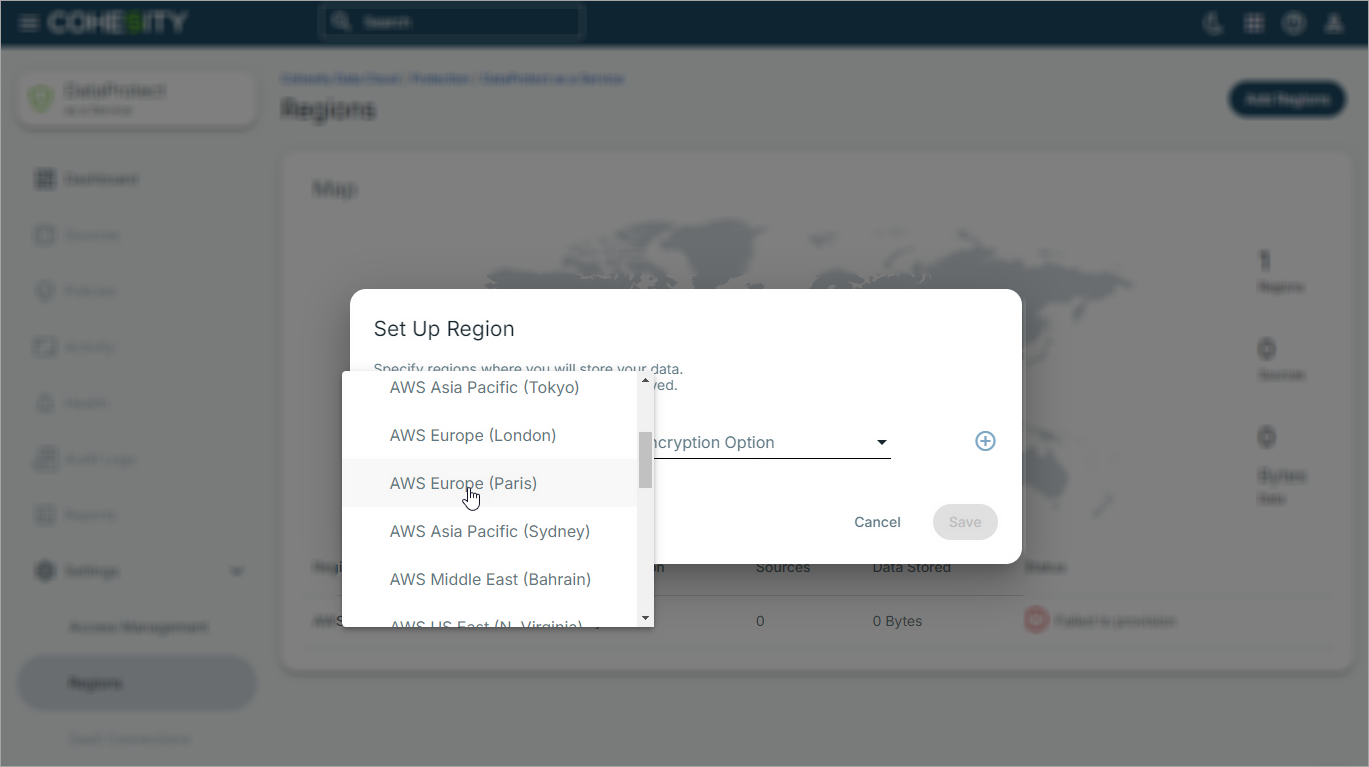
From the Set Up Region dialog, select the cloud region for your data backups and choose the encryption option. For more information on the encryption options, see Choose Key Management System (KMS).
-
Once the cloud region is provisioned, click Continue.
Add a Region Pair
Before you can archive data to a secondary region, you must pair the primary region with a secondary region.
To add a region pair:
-
In Cloud Protection Service, navigate to Settings > Regions.
The Regions page displays the list of regions that are added to the Cloud Protection Service for storing backup data.
-
Locate the primary region you want to pair.
-
From the Actions menu for the primary region, select Add Region Pairing.
-
From the Region Pairing (Optional) drop-down, select the secondary cloud region.
-
Choose the encryption option for the paired region. For more information on the encryption options, see Choose Key Management System (KMS).
-
Click Save.
After saving, the Region Pairing column in the Region Details table shows the associated secondary region. If no secondary region is paired, the column displays Not Configured.
