
Recover Microsoft 365 Applications Using Microsoft 365 Backup Storage
This is a Private Preview feature. Private Preview was termed as Early Access in the earlier releases. Contact your Cohesity account team to enable the feature.
Recover Microsoft 365 User Mailboxes
To recover protected Microsoft 365 user Mailboxes, see Recover User Mailboxes.
If the mailbox is backed up using the Microsoft 365 Backup Storage service, when you choose New Location, the data will be recovered to a new folder created by Microsoft in the same mailbox. This folder name is created as per the Microsoft policy and cannot be edited.
Recover OneDrives
To recover protected Microsoft 365 user OneDrives, see Recover User OneDrives.
If the OneDrive is backed up using the Microsoft 365 Backup Storage service, when you choose New Location, the data will be recovered to a new OneDrive created by Microsoft. This OneDrive name is created as per the Microsoft policy and cannot be edited.
Recover SharePoint Sites
To recover protected Microsoft 365 SharePoint Online sites, see Recover SharePoint Sites.
If the site is backed up using the Microsoft 365 Backup Storage service, when you choose New Location, the data will be recovered to a new site created by Microsoft. This site name is created as per the Microsoft policy and cannot be edited.
Edit Recovery Point in Microsoft 365 Backup Storage
This is a Private Preview feature. Contact your Cohesity account team to enable the feature.
To edit the recovery point during recovery of Microsoft 365 data in Microsoft 365 Backup Storage:
-
Navigate to Sources.
-
Click on the required source name, click Microsoft 365 Backup Storage, and click the required application tab. The list of objects is displayed.
-
In the Show All drop-down, select Protected.
-
Click the recover icon on the required object. The New Recovery page is displayed with the latest snapshot (protection run).
-
Click the edit icon at the top right of the page. The Edit Recovery Point page is displayed.
-
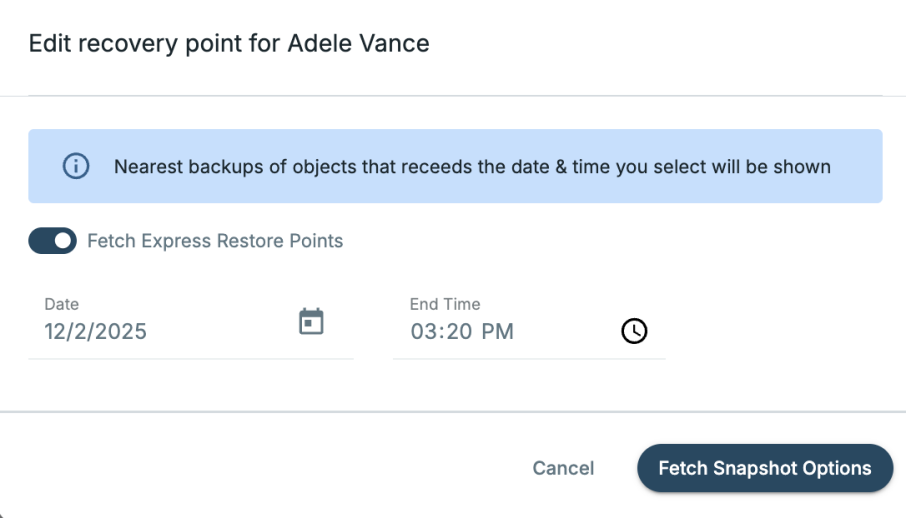
Click the edit icon next to the end time and perform the following:
-
Toggle ON Fetch Express Restore Points to view the express restore points recommended by Microsoft for faster recovery.
This option is available only for OneDrive and SharePoint.
-
Select the Date and End Time.
The nearest backups of objects that precede the date and time you select will be displayed.
-
-
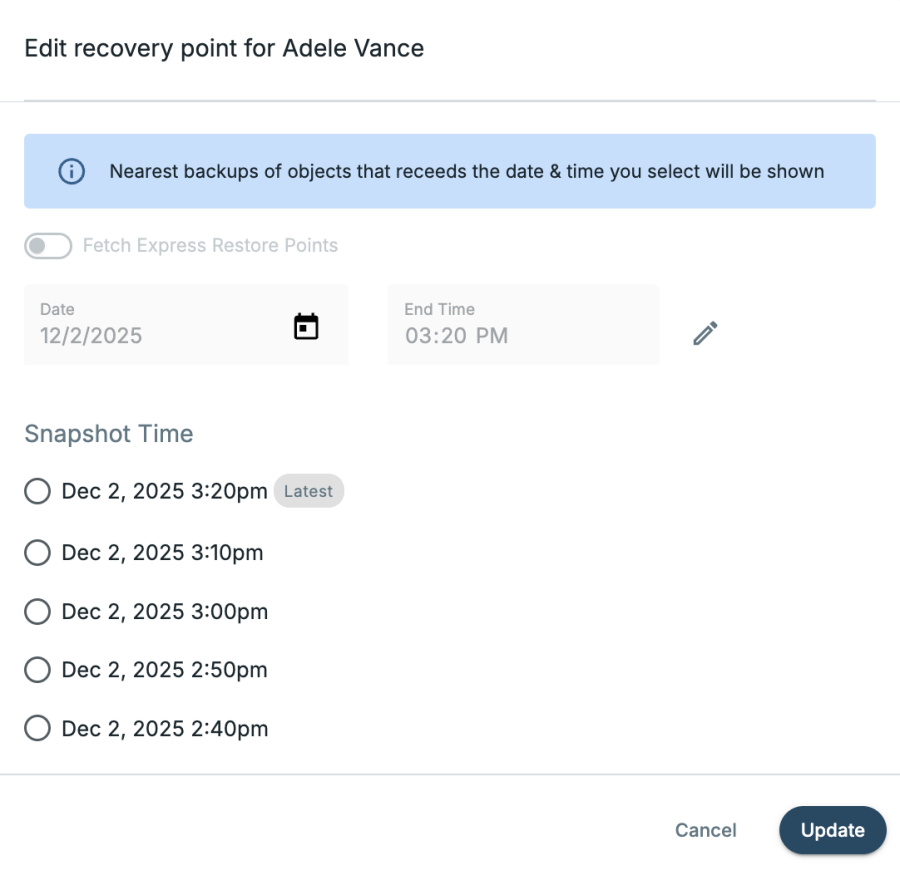
Click Fetch Snapshot Options. The list of snapshots will be fetched and displayed.
-
Select the required snapshot and click Update.
