
Set Additional Permissions for SharePoint Online
This section is only applicable for Sharepoint workload and when Azure apps are deployed with Client Secrets.
For SharePoint Online data protection, ensure that you set the required add-in permissions and tenant permissions below.
When you finish, your custom Azure app should include the permissions as shown below.
Add-In Permissions in SharePoint Online
Make sure that you assign the following add-in permissions to the custom app by configuring the tenant permissions. For more information, see Add-in permissions in SharePoint in the Microsoft documentation.
| Scope URI | Required Rights |
|---|---|
http://sharepoint/content/tenant
|
FullControl |
http://sharepoint/content/sitecollection
|
FullControl |
http://sharepoint/content/sitecollection/web
|
FullControl |
http://sharepoint/content/sitecollection/web/list
|
FullControl |
http://sharepoint/taxonomy
|
Read,Write |
Tenant Permissions
After you have registered the custom app, configure the tenant permissions on the custom app.
To configure the tenant permissions:
-
Launch the SharePoint Admin Center using the URL:
https://<your-tenant>-admin.sharepoint.com/_layouts/15/AppInv.aspxIn the case of Multi-Geo tenants, for sites in a specific region (e.g., 'eur' for Europe), the URL for the SharePoint Admin Center changes accordingly. For instance, the URL for the domain
abcdefand the regioneurwould be:https://abcdefeur-admin.sharepoint.com/_layouts/15/AppInv.aspx -
In the SharePoint Admin Center, log in as the tenant admin.
-
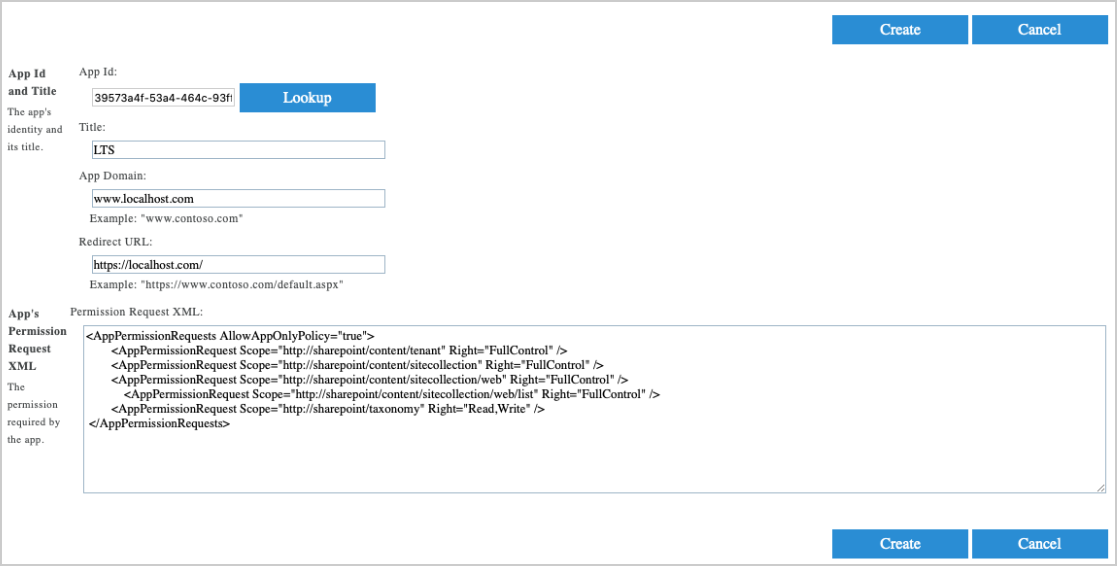
In the App ID and Title section, perform the following:
-
In the App Id field, enter the AppID of the custom app you have created and click Lookup to search for the custom app.
-
In the App Domain field, enter www.localhost.com as the app domain.
Do not enter any other string other than www.localhost.com in the App Domain field.
-
In the Redirect URL field, enter https://localhost.com/ as the redirect URL.
Do not enter any other URL other than https://localhost.com/ in the Redirect URL field.
-
In the Permission Request XML field, enter the following values:
<AppPermissionRequests AllowAppOnlyPolicy="true">
<AppPermissionRequest Scope="http://sharepoint/content/tenant" Right="FullControl" />
<AppPermissionRequest Scope="http://sharepoint/content/sitecollection" Right="FullControl" />
<AppPermissionRequest Scope="http://sharepoint/content/sitecollection/web" Right="FullControl" />
<AppPermissionRequest Scope="http://sharepoint/content/sitecollection/web/list" Right="FullControl" />
<AppPermissionRequest Scope="http://sharepoint/taxonomy" Right="Read,Write" />
</AppPermissionRequests>
App Configuration for SharePoint Online
-
-
Click Create.
-
In the Do you trust <app_title>? page, perform the following:
-
From the drop-down, select DO_NOT_DELETE_SPLIST_TENANTADMIN_AGGREGATED_SITECOLLECTIONS.
-
click Trust It.
-
If you have created your Microsoft 365 tenant on or after Sep 20, 2020, you must install SharePoint Online PowerShell. Using the global administrator account, run the following commands in an administrator PowerShell session:Get-Module -Name Microsoft.Online.SharePoint.PowerShell -ListAvailable | Select Name,Version
[Net.ServicePointManager]::SecurityProtocol = [Net.SecurityProtocolType]::Tls12

Install-Module -Name Microsoft.Online.SharePoint.PowerShell -Scope AllUsers
Connect-SPOService -Url 'https://<tenant>-admin.sharepoint.com'
Set-SPOTenant -DisableCustomAppAuthentication $False
Custom scripts setting is not supported in SharePoint.
Install SharePoint Online PowerShell
If you have created your Microsoft 365 tenant on or after Sep 20, 2020, you must install SharePoint Online PowerShell. Using the Windows administrator account, install the SharePoint Online PowerShell.
To install SharePoint Online PowerShell:
-
Log on to the administrator PowerShell session.
-
Verify if the module,
Microsoft.Online.SharePoint.PowerShellis already installed. Use the following command:Get-Module -Name Microsoft.Online.SharePoint.PowerShell -ListAvailable | Select Name,Version
-
If the module is not installed, use the following commands to install the module:
[Net.ServicePointManager]::SecurityProtocol = [Net.SecurityProtocolType]::Tls12
Install-Module -Name Microsoft.Online.SharePoint.PowerShell -Scope AllUsers -
Connect to SharePoint Online using a global administrator account and enter the global administrator username and password when prompted. Use the following command:
Connect-SPOService -Url 'https://<tenant>-admin.sharepoint.com'
-
Enable PowerShell libraries to connect to SharePoint Online. Use the following command:
Set-SPOTenant -DisableCustomAppAuthentication $False
